

Food Date Label User Guide
SFBB Pro Food Date Label Printer – Quick User Guide
The SFBB Pro Food Date Label Printer makes it quick and easy to create and food date labels for busy kitchens.
SETUP GUIDE
STEP ONE
Login to the SFBB Pro admin website and setup your categories and products. Everything is setup on the SFBB Pro admin website (then day-to-day label printing is done directly from the SFBB Pro app.)
Part 1 – SETUP YOUR FOOD DATE LABELS ON THE SFBB PRO ADMIN WEBSITE
Log in to your SFBB Pro account on the website. From the menu on the left, select
1. Select Label Generator in the left menu > Add your categories
Select Add Category and create the food categories your kitchen uses.
For example: Dairy, Meat, Fish, Vegetables, Sauces, Desserts, Ready-to-eat
Then save the categories you require.
2. Add your products
Open a category, such as Dairy, and select Add Product.
Enter the product information, for example Milk. Select where the product is stored — Fridge or Freezer — and set the appropriate expiry/use-by period.
For example, your business may use 2–3 days for refrigerated prepared foods or 30 days for certain frozen products. These are examples only: set the period according to your own food-safety procedures, manufacturer instructions and applicable guidance.
You can also add information such as allergens, a description and preparation instructions where required.
3. Complete your product list
Repeat the process until all the categories and products regularly used in your kitchen have been added.
Once this is complete, your staff can use the app for everyday label printing.
Part 2 – PRINTING LABELS FROM THE APP
1 - Add your items to the Print queue
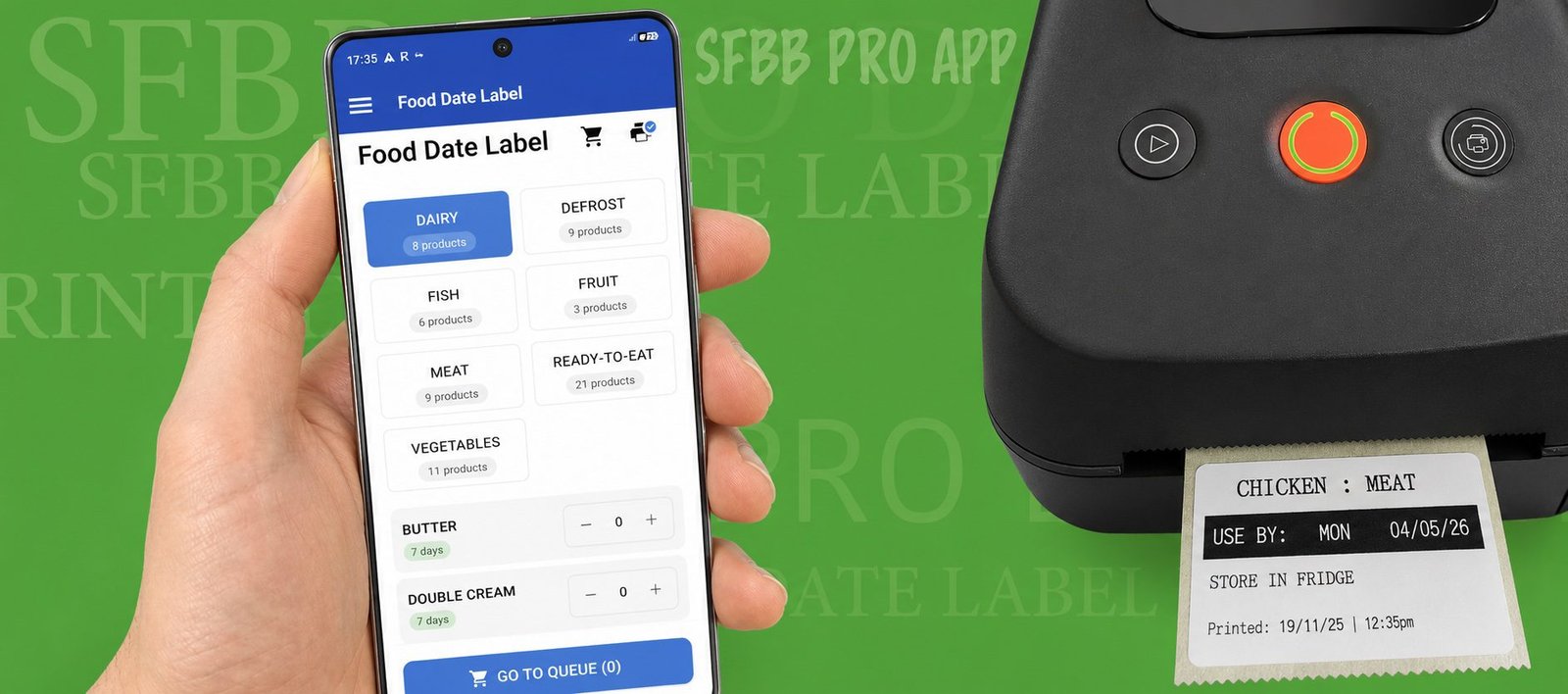
Open the SFBB Pro app and tap FOOD DATE LABEL from the Home screen.
Select the required category, then find the product you want to label. Tap + to add the required number of labels.
When you’ve selected everything you need, tap GO TO QUEUE.
Your selected labels will appear in the Print Queue.
2 Connect the printer
If the app displays “Printer not connected” in the top right of the screen, tap the printer icon in the top-right corner.
Tap Scan and wait for the SFBB printer to appear.
Select the printer and allow the app to connect via Bluetooth.
Once connected, return to the Print Queue.
3 - Print Food Date Label
Now you are ready to print the food date labels. Press GO TO QUEUE. Which will take you to the print queue. Check all your items are in the print queue.
Press PRINT
Your food date labels will print automatically using the product and expiry information you’ve already configured.
That’s it — your Food Date Labels should now all print out
F.A.Qs about the Food Date Label Printer
Our food date label reels for the SFBB Pro printer are sold and deliverd by Amazon. Amazon is able to deliver the reels rapidly with the next day service in most cases. You can order them here - click to order
Each label reel contains 2750 food date labels. This is the most out of any food date label apps available - most just contain 100 date labels, which means you'll spend most of your time changing the printer reel.
The SFBB Pro Food Date Label App allows restaurants, cafés, takeaways and other food businesses to create and print food preparation and date labels directly from the SFBB Pro app using a compatible Bluetooth thermal label printer.
Yes. Each product can have its own expiry rule. This means you can configure the system according to your business’s food-safety procedures rather than manually calculating dates each time a label is printed.
Yes. Products can be configured with their appropriate storage information and expiry rules, including products stored in a fridge or freezer.
Yes. Once you have configured the expiry rule for a product, SFBB Pro calculates the date when the label is created, helping staff avoid manually working out dates.
Yes. Add multiple products or quantities to the Print Queue and print them together, making it much quicker when preparing food at the beginning of a shift.
Hello World ...
Yes. Label printing is designed to be carried out through the SFBB Pro mobile app using a compatible Bluetooth printer.
The printer connects using Bluetooth. In the Food Date Label section, tap the printer icon, scan for the printer and connect. Once connected, you can print labels directly from the app.
No. The printer uses direct thermal printing, so there are no ink cartridges or toner to replace. You only need compatible thermal labels.
The biggest saving comes from removing repetitive handwriting and manual date calculations. Staff select a product and print, which can save significant time in kitchens producing dozens of labels every day.
Once your printer is ready, set up your categories and products in SFBB Pro, connect the printer through the app via Bluetooth and you can begin printing labels. For most kitchens it will take 20 minutes to setup, saving hours a week from manually writing out food date labels
Other Questions
Yes. You can program the app to alert with a visual and sound notification to remind users to fill out all checklists. The time and days for alerts are programmed in the settings.
Yes - we advise the app is installed on a physical tablet in the kitchen. But you can complete and check your entire SFBB pro app on your smartphone or tablet anywhere, and update it as often as you need to.
Yes there is a delivery section to record all the information EHO required in according with Food Standard laws. The delivery information is added to the reports everyday.
Yes. Alongside a fully completed Safer Food Better Business book the app makes you fully compliant. Should an inspector visit you in the UK or Republic of Ireland, and question the validity of your use of the SFBB pro App, please contact us immediately and we'll assist you.
When choosing a food safety app, look for a system designed for UK food businesses that covers everyday food safety records, temperature monitoring, reporting, allergens, staff accountability and inspections. SFBB Pro brings these features together with additional tools including food date labelling and multi-site management.
SFBB Pro is designed specifically for UK food businesses using the Food Standards Agency's Safer Food, Better Business approach. It combines digital food safety records, temperature monitoring, staff accountability, allergen management, reporting, food date labelling and multi-site management in one system.
Hello World ...